
Home Monitor text alerts
Last updated: October 15, 2026
Home Monitor, by Stoll Design, watches a home’s solar, battery, generator, propane and heating. People who use it can choose to be texted when something at their property needs attention. This page shows exactly how someone signs up, what they agree to, and how they stop.
Who gets texts
Only people with a Home Monitor account for a property (the owner, and people the owner invites) can get texts, and only at a mobile number they add and confirm themselves. Nobody can add a number for someone else, and we never buy, import or share lists of numbers. Texts are alerts about the person’s own properties, never marketing.
How someone signs up
Signing up happens in the web app at monitor.stoll.cc, after signing in, under My account › Alerts. These are the screens.
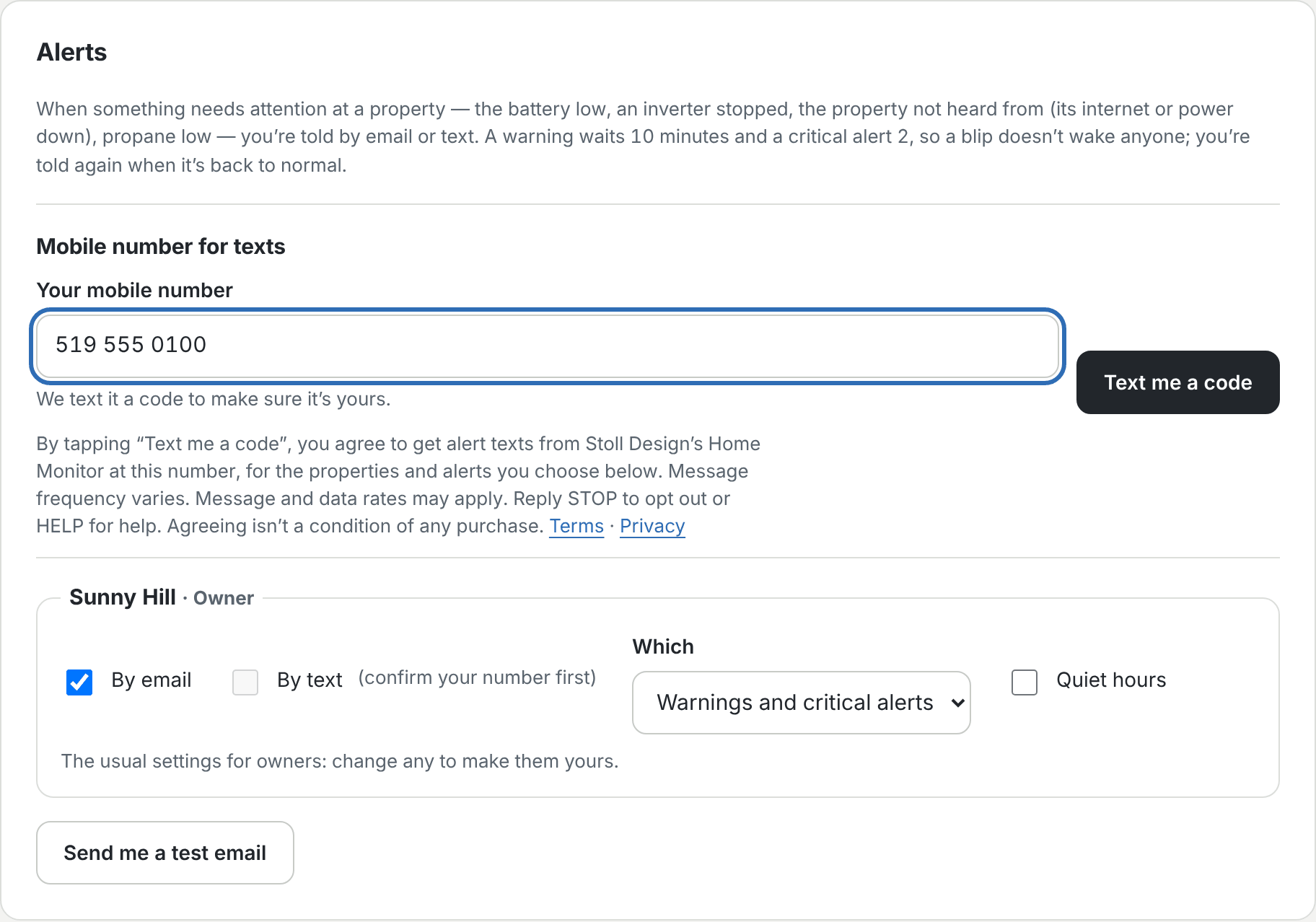
1. Add a mobile number and agree
The person types their mobile number. Right beside the button, before anything is sent, the page says what they’re agreeing to:
“Terms” and “Privacy” link to this site’s terms and privacy policy.
2. Confirm with the texted code
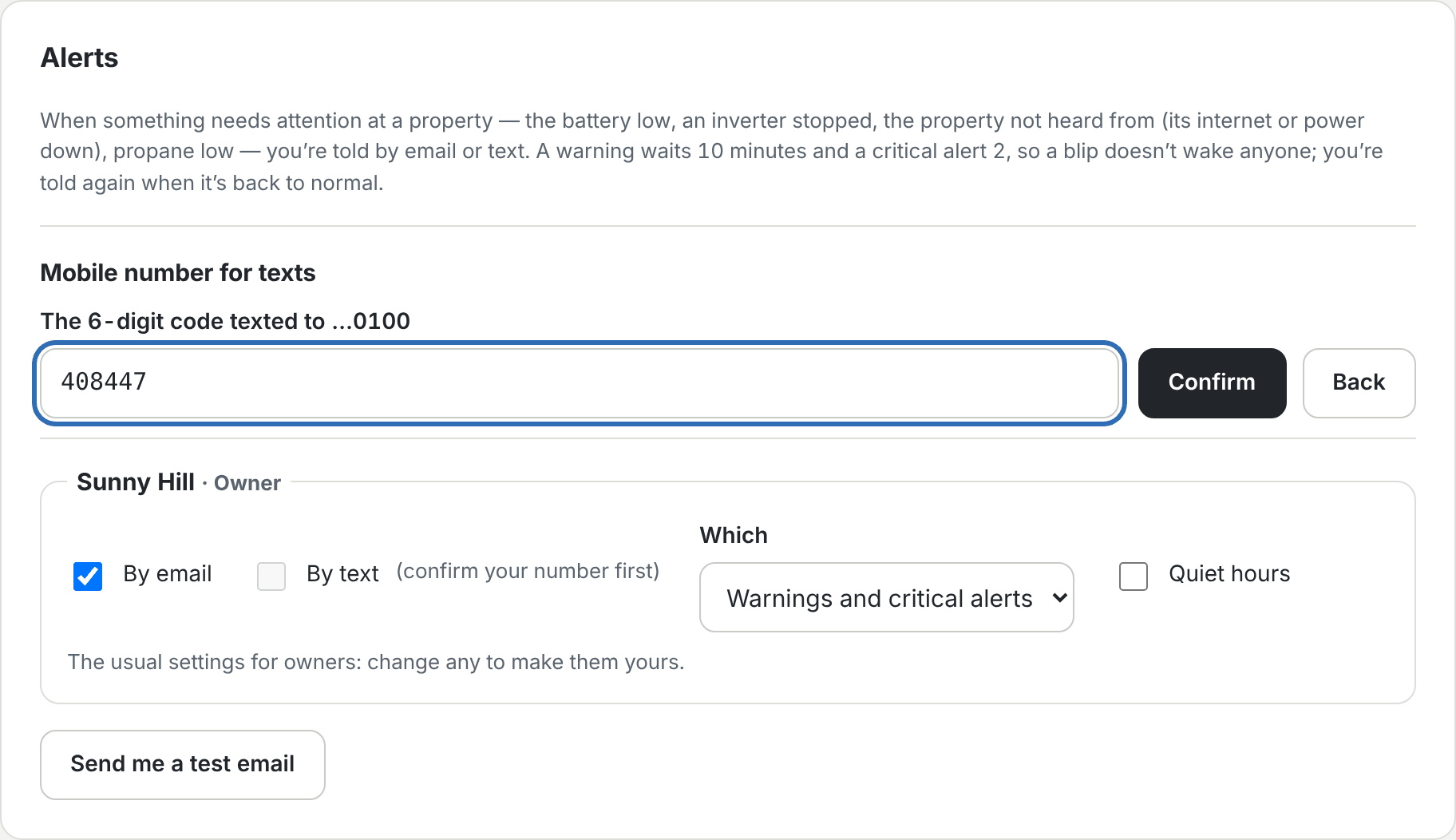
We text a 6-digit code to the number. This is the first text anyone gets from us:
Stoll Design Home Monitor: your code is 275591 (15 min). Alert frequency varies. Msg & data rates may apply. Reply HELP for help. Reply STOP to opt out.
The person types the code into the page. Without the right code, the number isn’t saved and nothing else is ever texted to it. A code lasts 15 minutes.
3. Choose which properties text them
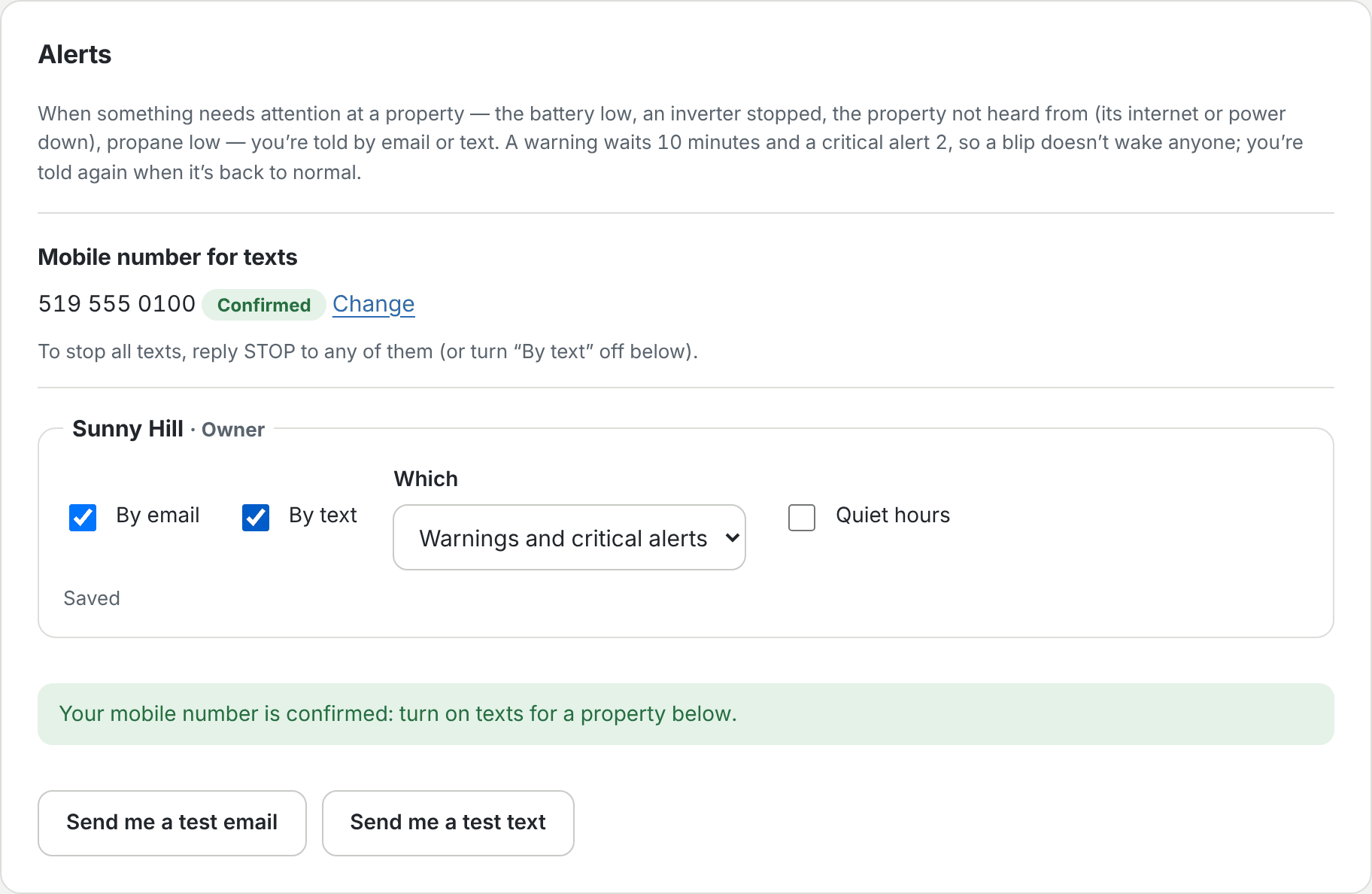
Once the number is confirmed, the person turns on “By text” for each property they want texts about, and picks which alerts (warnings and critical ones, or only critical) and any quiet hours.
What the texts say
Every text says who it’s from (the property’s name or “Home Monitor”), what happened, a link to the monitor, and how to stop. For example:
Sunny Hill: CRITICAL Battery at 12% https://monitor.stoll.cc/ Reply STOP to opt out.
Sunny Hill: OK now: Battery at 29% https://monitor.stoll.cc/ Reply STOP to opt out.
Sunny Hill: CRITICAL Sunny Hill hasn't been heard from for 25 minutes: its internet or power may be down (last report at 3:00 p.m.) https://monitor.stoll.cc/ Reply STOP to opt out.
How often
Message frequency varies with what happens at the property. Most days there are none. A warning waits 10 minutes and a critical alert 2 minutes before it’s sent, so a short blip doesn’t text anyone; several alerts at once come as one text; and nobody is sent more than 12 texts a day.
Stopping and help
- STOP: reply STOP to any text and you won’t get any more. You can also turn “By text” off in the app, or remove your number.
- HELP: reply HELP, or email [email protected].
- Message and data rates may apply. Carriers aren’t liable for delayed or undelivered messages.
Full details are in the text alert terms and the privacy policy.